Opening your shop has never been easier. It only takes few minutes.
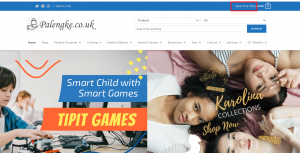
Step 1.Click on ‘Open your shop‘ at the top right corner of the page.
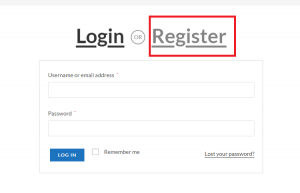
Step 2. Login if you already have an account (i.e. buyer’s account) or click Register to create a new account.
Step 3. Fill out the Register form and tick the ‘Register as a Seller’. Leaving it unticked is only for registered buyer’s account.
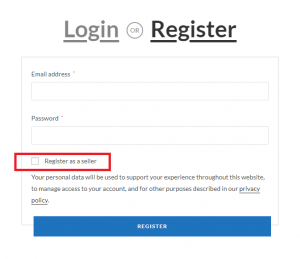
Step 4: After the ‘Register as a seller’ is ticked, further form fields will appear requiring more information. Please fill out all the required fields.
- Email address – this will be the email address to be used for all correspondences. This can also be your alternative username.
- Password – this will be the password of your shop. Please make it more secured by making it at least 8 characters with combinations of capital and small letters, numbers and special characters.
- Owner First Name
- Owner Last Name
- Store name – this is the name of your store. e.g. Mang Ador’s Fresh Fruits and Vegetables, Irene’s Cake and Pastries, Unitedz, Brainwise Books, etc.
- Address – this is your store address. If you’re also selling offline, it’s recommended to put your FULL ADDRESS as it can be displayed in your shop’s header.
- Store eMail – this is the email you want to display in your shop’s header as contact detail for your buyers.
- PayPal eMail – this is your PayPal account where you will be paid if someone bought your products or services via PayPal, Credit or Debit Cards.
- Telephone – your phone or mobile number. This too can be displayed in your shop’s header.
- VAT/SSN – this is entirely optional, only if you have VAT/SSN.
- DON’T FORGET TO READ the Terms & Conditions and ‘tick the box’ if you’re happy with it. You can also read our Privacy Policy to know how we process your data and your buyer’s data.
Step 5. If you’re happy of the entries, click the Register Button. Check your email for verification, a link could be clicked to verify your account. Make sure the email is sent by admin@palengke.co.uk. You can also check your spam folder in case the email didn’t go to your inbox. Please whitelist our email ‘admin@palengke.co.uk‘ so any future correspondences will go straight to your inbox.
After sending your application, you will be redirected to your Normal (Buyer’s) Account. Your Backend (Seller’s Dashboard) is not yet available until your seller application is approved.
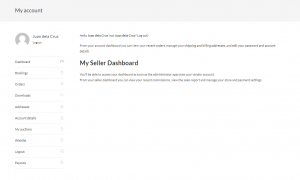
This is what your normal account looks like when your seller application is approved and ‘My Seller Dashboard’ is now available.
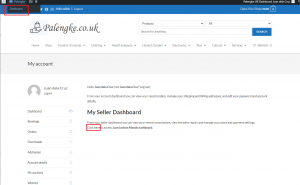
For safety issues, we need to approve your shop application manually. As soon as your application is approved, you can straight away get into the Seller’s Dashboard and edit/personalize your shop or start uploading your products. There are number of ways to get into the back-end…
- If you’ve already logged in, a top bar with dark background appears. Hover on ‘Palengke’ and click on ‘Dashboard’. You can also get into the back-end by clicking the link ‘Click Here‘ underneath the ‘My Seller Dashboard’ at your normal/buyer’s account (My Account).
- If you’ve been logged out, click the Sign in / Join at the top bar of the website or the My Account located at the footer of the website. The top bar with a dark background will then appear which opens your way to the Back-end
To Logout:
- To logout from the website/front-end,
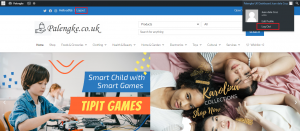
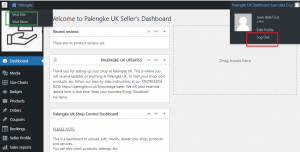
- To logout from the back-end, hover the profile at the topmost right link then click ‘Logout‘. To visit your shop, hover the ‘Palengke’ then click ‘Visit Store‘. To visit the front-end/mainpage, hover the ‘Palengke’ then click ‘Visit Site‘.