
Adding a simple product is the very basic of product posting in eCommerce shop.
After entering the title and description, chose simple product in the Product Data.
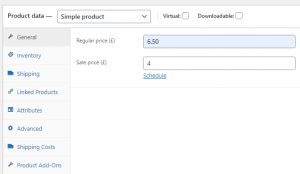
Under Product Data area, you can configure the following…
1. General: Here you can set the regular price of the product or a sale price if you want to put a discount on the product.
- Regular Price – Item’s normal/regular price
- Sale Price – Item’s discounted price that can then be scheduled for certain date ranges. The sale expires at 11:59pm of the specified end date
2. Inventory: The inventory section allows you to manage stock for the product individually and define whether to allow back orders and more. It enables you to sell products and allow customers to add them to the basket to buy. Here you can put the SKU number of your product, In stock or out of stock status, option to sell the product individually and option to enable stock management like stock quantity, allowing backorders, low stock threshold.
3. Shipping: Here you can put the weight of the product, dimensions as well as assigning a Shipping Class. Shipping classes are used by certain shipping methods to group similar products. Shipping class is provided by Palengke UK. If your product needs a new shipping class, please contact Palengke UK.
- Weight – Weight of the item.
- Dimensions – Length, width and height for the item.
- Shipping Class – Shipping classes are used by certain shipping methods to group similar products.
Up-sells are displayed on the product details page. These are products that you may wish to encourage users to upgrade, based on the product they are currently viewing. For example, if the user is viewing the coffee product listing page, you may want to display tea kettles on that same page as an up-sell.
4. Attributes: On the Attributes tab, you can assign details to a product. You will see a select box containing global attribute sets you created (e.g., platform). More at: Managing Product Categories, Tags and Attributes.
Once you have chosen an attribute from the select box, click add and apply the terms attached to that attribute (e.g., Nintendo DS) to the product. You can hide the attribute on the frontend by leaving the Visible checkbox unticked.
Custom attributes can also be applied by choosing Custom product attribute from the select box. These are added at the product level and won’t be available in layered navigation or other products.
5. Advanced: Here you can add optional purchase note to send to the customer after purchase. You can also enable or disable a review to the product.
- Purchase note – Enter an optional note to send the customer after they purchase the product.
- Menu order – Custom ordering position for this item.
- Enable Reviews – Enable/Disable customer reviews for this item.
6. Shipping Cost: If you enable shipping cost specific for this product, you’ll have the opportunity to set its own shipping cost per product/per quantity/or per order according to basket price, basket quantity, product quantity, product weight, and basket weight.
You can also select downloadable (digital) or virtual (service) if applicable. Note: Virtual products don’t require shipping — an order with virtual products won’t calculate shipping costs.
