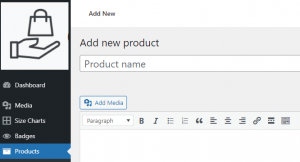
To add, edit or remove a product, go to Products -> Add New tab.
There are 10 Easy Steps to post your product at Palengke UK.
1. Product Title: Put the title of your product in a provided textbox.
2. Product Main Description: Put the main description in a provided textbox.
3. Product Type and Configuration: At the product data, choose the type of product you’ll going to post – simple product, grouped product, external/affiliate product, variable product, auction or booking product.
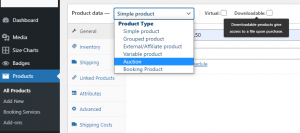
- Simple Product – This covers the vast majority of any products you may sell. Simple products are shipped and have no options. For example, a book.
- Grouped Product – A collection of related products that can be purchased individually and only consist of simple products. For example, a set of six drinking glasses.
- External/Affiliate Product – You can post other people products from other websites and earn commission through their affiliate programs or any deals you’ve made with them.
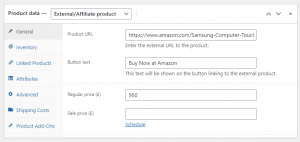
- Variable Product – You can post a variable product with various settings from multiple choice of colors and sizes to functionalities. This is a product with variations, each of which may have a different SKU, price, stock option, etc. For example, a t-shirt available in different colors and/or sizes.
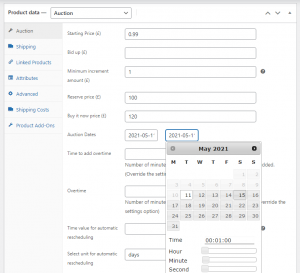
- Auction – You can put your products on Auction. You can set a starting price, reserve price, buy it now price, dates, overtime, and more.
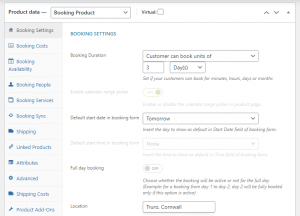
- Booking Product – You not only post a physical product but booked services as well. This booking product gives you the opportunity to accept and process bookings for your caravan, cottages, holiday pods, B&B, house for short let, cars, services and many more.
- Virtual/Downloadable Product – You can post virtual or downloadable products whether file uploaded in the system or from external storage or links. This product doesn’t require shipping. For example, a service. Enabling this, disables all shipping related fields such as shipping dimensions. A virtual product will also not trigger the shipping calculator in cart and checkout.
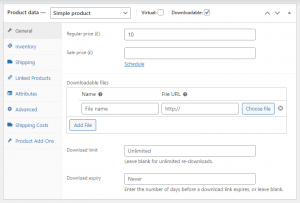
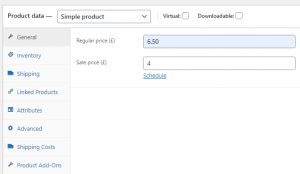
4. Product Setup: Under Product Data area, you can set up the Price, Shipping Costs, Inventory, Linked Products and many more settings depending on the type of your product.
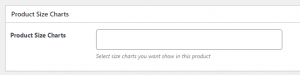
5. Product Size Charts: If you are selling product with various sizes, you can select the size charts that you want to show in your product here provided you have created this chart via the Size Chart area.
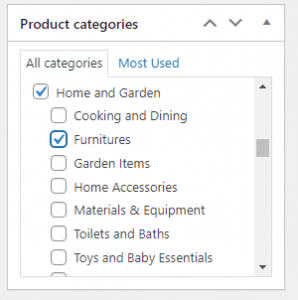
6. Product Categories: Set the category or categories for your product according to types or features. Product categories have been set by Palengke UK for general categorization. If your product won’t fit on any of the available categories, please contact us or put it under ‘Other Items’.
7. Product Tags: Provide product tags. Product tags are another way to relate products to each other, next to product categories. Contrary to categories, there is no hierarchy in tags; so there are no “subtags.”
For example, if you sell clothing, and you have a lot of cat prints, you could make a tag for “cat.” Then add that tag to the menu or sidebar so cat lovers can easily find all t-shirts, hoodies, and pants with cat prints.
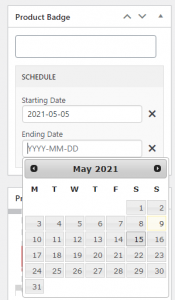
8. Product Badge: You can assign a badge and schedule to your product according to your preference here provided you have created a badge via the Badges area. There are lots of ready made badges to use or you can also create a fully customized badge.
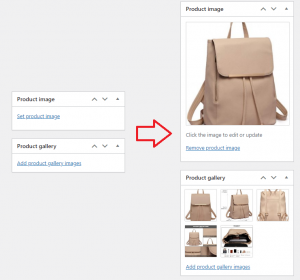
7. Product Image and Gallery Image/s: Here you can upload the product’s main image as well as other images in gallery form.
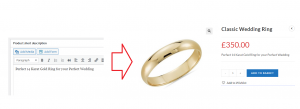
9. Short Description: You can highlight a description or features of your product via the Short Description box. This description will appear just below the title before the ‘Add to Basket’ button.
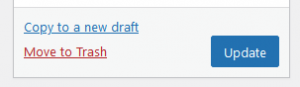
10. Finishing: If you’re happy with your product’s description and settings, click the UPDATE Button located at the top-right corner of the editor page then your product is live ready to be bought by online buyers.