Implement a booking/appointment system to manage booking of services, rooms, accommodation facilities and so on to your product.
To post your booking product, Select ‘BOOKING PRODUCT’ from the product type drop down.
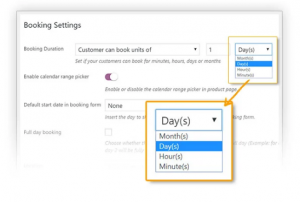
Booking Settings: Create fixed booking units or give users the freedom to choose the duration of their stay.
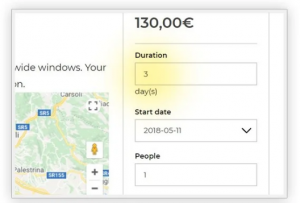
Booking Cost: Set a base price for the booking units with an option of multiplying it to the number of people and extra price for every person added.
- You can also apply discount to encourage users to book longer stays.
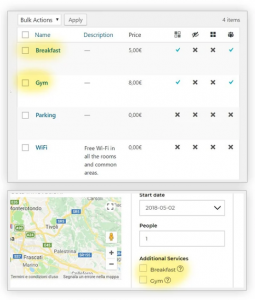
- You can add extra cost like extra services or amenities.
- You can create advanced rules to set different prices for specific conditions (dates, months, durations).
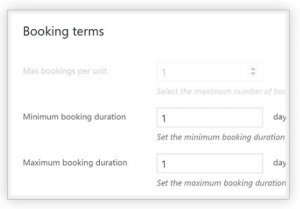
Booking Availability: Avoid unwanted bookings and set the minimum and maximum duration for your booking
Booking Preferences:
- Insert check-in time for your customers
- Insert check-out time for your customers
- Select on which days the booking can start. Leave ‘Allowed Start Days’ empty if it can start without any limit on any day of the week.
- Buffer Time – Time for preparation or cleanup between two bookings.
Booking Window:
- Minimum Advanced Reservation – Insert the minimum advance reservation for the booking. For example: if you set it to 10 days, customers can book now a booking that will start in 10 days.
- Maximum Advanced Reservation – Insert the maximum advance reservation for the booking. For example: if you set it to 6 months, customers can only book within 6 months.
Additional Availability Rules: You can create advanced rules to enable/disable booking availability for specific dates or months
People Settings: Option if the booking can be made only by a specific number of people. You can set the minimum and maximum number of people per booking.
Apply different rates based on the booking people – men, women, children, adults, over -60 are just a few categories that you could create.
- Count People as Separated Bookings – If you need to book only for a fixed number of people and you set the number in “Max bookings per unit” option, check this option to count each person as a separate booking. Example: you set 10 people for a Yoga class and you set 10 in “Max bookings per unit” option; every person will be a separate booking until number 10 is reached.
- Enable People Types – You can use types, for example, to set different prices for different people. Example: Adult 30 $, Child 10 $.
Booking Services: Insert services available for this product. Add extra services to your bookings and assign extra costs for each item.