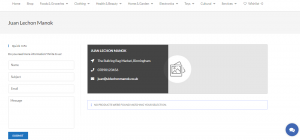
After Registration, your shop is in its basic form. No header, no look, no contents… just the contact form, live chat, and a blank header containing your contact details.
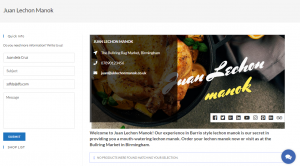
There are several steps to personalize your own shop.
Step 1: Go to the Seller’s Dashboard (Back-end), click the Seller Profile tab.
- The name and slug of your shop. In you dashboard’s Vendor Profile tab, click the the ‘General Tab’ and change the name of your shop as well as the slug. The “slug” is the URL-friendly version of the name. It is usually lowercased and contains only letters, numbers and hyphens.
- Editing the Shop’s Front Page. In the Front Page Tab, you can put your shop’s description in a provided text box with text, image, media, mixed media or codes features. You can also upload/add/remove the header image, logo, contact information, and social profiles.
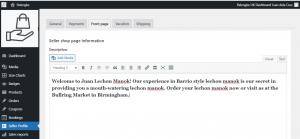
- Description – here you can put anything that describe your shop. i.e. what you sell, your shop’s description, history, rules, etc. You can change it’s font size, make it bold, italic, etc. You can also add images or videos if you wish.
- Header Image – this is the main image of your shop, ideal image size is around 1135 by 547 pixels but it’s entirely up to you.
- Logo/Avatar – this is the logo of your shop.
- Contact Information – fill out these fields to display the essential contact information of your business. (Location/Store Address, Store email, Telephone/Mobile Phone, VAT/SSN, Company legal notes)
When you’re happy with your entries, click the ‘Save Front Page Settings‘ button
Your shop is now set… ready for your products!
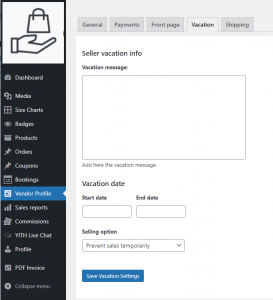
3. Holiday/Vacation. You can set your shop to ‘Holiday/Vacation’ with an option for vacation message for your customers and visitors. You can set the start date and end date with selling options of continue selling or temporarily prevent sales.