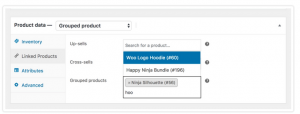
A grouped product is created in much the same way as a Simple product. The only difference is you select Grouped from the Product Type dropdown.
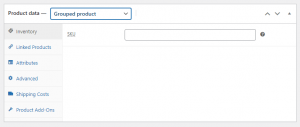
To create your parent product select ‘Grouped’ from the Product Type dropdown.
Create the Grouped product:
- Go to: Products > Add New.
- Enter a Title for the Grouped product, e.g., Back to School set
- Scroll down to Product Data and select Grouped from the dropdown. The price and several other fields disappear. This is normal because a Grouped Product is a collection of ‘child products’, which is where you add this information.
- Publish.
The Grouped product is still an empty group. To this Grouped product, you need to:
- Create products and add them
- Add existing child products
Having the choice to first create Simple products and add them to a Grouped product later; or first create a Grouped product and add Simple products later gives you flexibility to add Simple products to more than one Grouped product.
Add products to the Group
- Go to: Products > Add New.
- Select the Grouped product you wish to add products to.
- Scroll down to Product Data and go to Linked Products.
- Select Grouped Products, and search for the product by typing
- Click the products you wish to add.
- Update
- You can drag and drop to reorder the Grouped Products. Once you press Update, the new order will be shown on the product page.