
Variable products are arguably the most complex of product types.
They let you define variations of a single product where each variation may have a different SKU, price or stock level.
Variable products are a product type in WooCommerce that lets you offer a set of variations on a product, with control over prices, stock, image and more for each variation. They can be used for a product like a shirt, where you can offer a large, medium and small and in different colors.
Adding a Variable Product
Step 1. Set the Product Type
To add a variable product, create a new product or edit an existing one.
- Go to: Products.
- Select the Add Product button or Edit an existing product. The Product Data displays.
- Select Variable product from the Product Data dropdown.
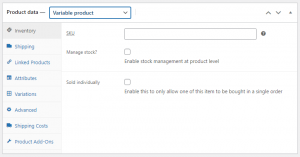
Step 2. Add Attributes to Use for Variations
In the Attributes section, add attributes before creating variations — use global attributes that are site-wide or define custom ones specific to a product.
Global Attributes
To use a global attribute:
- Create global attributes.
- Select one from the dropdown and click Add.
- Choose Select all to add all attributes to the variable product (if applicable).
- Enable the Used for variations checkbox to tell WooCommerce it’s for your variations.
- Click Save attributes.
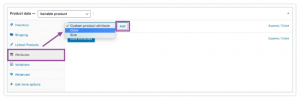
Adding a global attribute
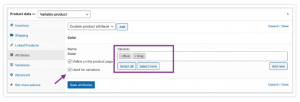
Adding global attribute values
Custom Attributes
To add a new attribute specific to this product:
- Select Custom product attribute and click Add.
- Name the attribute (e.g., Size).
- Set values separated by a vertical pipe,
|(e.g., Small | Medium | Large). - Enable the Used for variations checkbox.
- Click Save attributes.
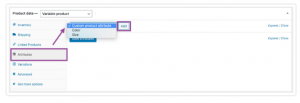
Adding a custom attribute
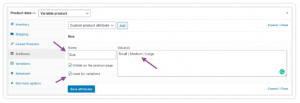
Adding custom attribute values
Step 3. Add Variations
To add a variation, go to the Variations section in the Product Data meta box.
Manually Add a Variation
1. Select Add variation from the dropdown menu, and select Go.
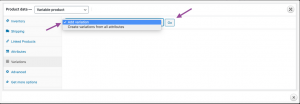
2. Select attributes for your variation. To change additional data, click the triangle icon to expand the variation.
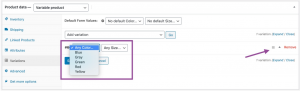
3. Edit any available data. The only required field is Regular Price.
4. Click Save changes.
Creating All Possible Variations
Select Create variations from all attributes to have WooCommerce create every possible combination of variations and click Go:
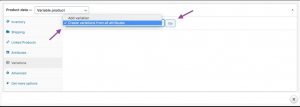
It will create a new variation for each and every possible combination of variation attributes (max 50 per run). If you have more possible combinations you can run it again.
If you have two attributes – color (with values blue and green) and size (with values large and small) it creates the following variations:
-
- Large Blue
- Large Green
- Small Blue
- Small Green
For more readings on Variations, click here

TDL’s hiցh-speed CNC milling machines ensure effjcient аnd timely production.